
To stop PDF audio reading repeated headers and unwanted footnotes, correct the text before generating speech. Identify which fragments are page decoration, which are real headings, and which notes change the meaning. Remove confirmed repetition from a copy of the script, then compare it with the PDF and listen to a short corrected passage.
Hear the difference on a two-column PDF
The raw text of this two-column PDF jumps between columns and includes a running header, a page number and a print layout note. The corrected script reads the left column before the right and keeps the chapter heading and both measurements: 12 meters and 8 seconds. Both clips read page 1. Page 2 lets you confirm that the header repeats.
Download the original sample PDF
“At dusk, the keeper carried a brass lamp” jumps straight to “Once the lamp was lit”.
The keeper first carries the lamp “up the tower steps”. Only then does the right column begin.
Both clips read the linked text using the same offline demonstration voice and speaking rate. PDF to Audiobook made the PDF for this exercise. On November 8, 2026, we verified extraction, text editing, splitting and text export in the browser workspace. You can repeat the review without signing in or generating new audio.
Repeat the cleanup
- Download the sample PDF, open the PDF converter, and choose the file. Open Page 1 in the section list and compare its extracted text with the PDF. Uncheck Include Page 2 to keep it out of this example.
- Remove the running header, the page number and the print layout note with its asterisk. Keep the chapter heading and the values 12 meters and 8 seconds.
- Move the whole left column before the right. Compare your result with the corrected TXT. Place the cursor before “Once the lamp was lit” and choose Split at cursor to make two sections.
- Choose Download reviewed text to save the two selected sections. The export includes their section labels. Listen to the clips above while following the scripts to check what changed.
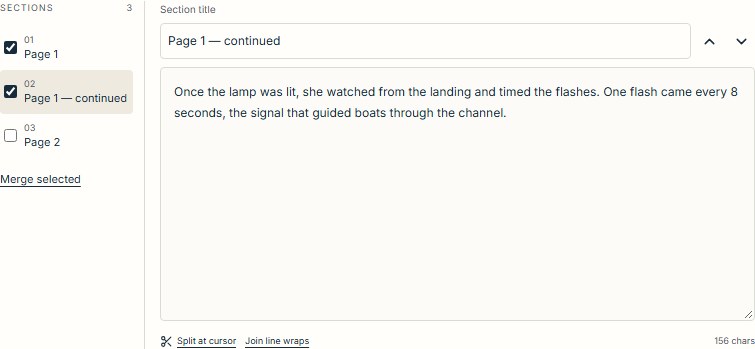
Identify what is being read out of order
Follow the extracted script alongside the original page where the interruption occurs. If the unwanted phrase is already in the script, fix extraction or editing first. Changing the voice will not remove text supplied to the speech engine. If the script is correct but the audio differs, investigate the synthesis or playback path separately.
| Symptom | Check in the PDF | Suitable action |
|---|---|---|
| The same book title interrupts every page | A repeated running header or footer. | Remove the repeated occurrences after confirming they are outside the body. |
| A number interrupts a sentence | A page number, a note callout, a date or a meaningful quantity. | Identify its role before removing it; do not delete all standalone numbers. |
| A long aside appears mid-paragraph | A footnote body inserted before the paragraph is finished. | Move, retain or omit the note deliberately, together with its callout. |
| Sentences alternate between unrelated topics | Two columns or a sidebar being interleaved. | Reconstruct the reading order; margin removal alone will not solve it. |
| A title appears once at a chapter opening | A genuine chapter or section heading. | Keep it unless you have deliberately excluded that heading from narration. |
PDF text often consists of positioned fragments without enough reliable structure for an extractor to identify these roles. Some tagged PDFs do carry a logical structure tree, so the problem is not that the PDF format can never represent structure. The pypdf extraction guide describes the ambiguity, while OCRmyPDF's tagged-PDF notes explain the structural distinction.
Remove repeated page furniture carefully
For a short document, manual cleanup is often the clearest route. Save an untouched text extract, make a narration copy, then remove only the repeated header/footer occurrences you have checked against the page. Review search-and-replace matches one by one: the book title may also occur legitimately in a sentence, and a chapter title at the top of a page is still content.
For a stable page layout, pypdf offers a position-based filter through visitor_text. Its five callback arguments include the current text, current transformation matrix, text matrix, font dictionary and font size. The documented example combines the matrices with mult(tm, cm) and uses the resulting vertical position. This is a geometric rule for an inspected layout, not a footnote detector. See the official visitor example.
The following unexecuted pypdf 7.0.0 example filters only the first page. Save it as filter_page.py; pass the lower and upper vertical boundaries you measured for that page. It writes separate original and filtered extracts.
import sys
from pathlib import Path

from pypdf import PdfReader, mult

lower_y, upper_y = map(float, sys.argv[1:3])
if lower_y >= upper_y:
    raise ValueError("The lower boundary must be below the upper boundary.")

page = PdfReader("input.pdf").pages[0]
original = page.extract_text() or ""
kept = []


def collect_body(text, cm, tm, font_dict, font_size):
    y = mult(tm, cm)[5]
    if lower_y < y < upper_y or (y == 0 and not text.strip()):
        kept.append(text)


page.extract_text(visitor_text=collect_body)
Path("page-1-original.txt").write_text(original, encoding="utf-8")
Path("page-1-filtered.txt").write_text("".join(kept), encoding="utf-8")
The upstream demonstration uses boundaries of 50 and 720 for its particular PDF, with a zero-coordinate exception for line breaks. Those values are not portable defaults. Inspect actual text positions and page dimensions, then choose boundaries that exclude only known page furniture. This example keeps whitespace-only fragments at zero; it does not keep arbitrary text there.
Use the callback's collected text, "".join(kept), as the filtered result. Do not add extraction_mode="layout" to this call: that mode ignores visitor_text, as the pypdf implementation explicitly states.
Stop using one fixed boundary pair when page size, rotation, margins or layout changes. Test odd and even pages, chapter openings and pages whose body text approaches the lower margin. pypdf warns that coordinates can be wrong in complicated documents. If the filter removes valid sentences or headings, restore the original extract and use a page-specific rule or manual editing. Extending the lower cutoff to catch footnotes can also remove the end of a body paragraph.
Choose whether footnotes should be read
A footer and a footnote serve different purposes. A repeated page number can usually be excluded from narration after checking it; a footnote may contain a definition, qualification, citation or additional argument. Choose a treatment based on the note's content:
- Read it near the reference when understanding the sentence depends on it. Add a clear transition in the narration copy so the listener can follow the aside.
- Move it to the end of the section or chapter when it is useful but interrupts the argument. Preserve its relationship to the original reference.
- Omit it from the listening copy only after deciding that the lost information is acceptable. Retain the original notes in the source or a companion text, and review the inline callouts as well.
For less uniform documents, Docling provides a different control: filtering items by recognized labels. Its reading-order pipeline distinguishes page headers and footers from other content and uses a separate FOOTNOTE label. The export code accepts an allowlist; it does not independently determine whether the original classification was correct. See the reading-order implementation, label definitions and serializer filtering.
This unexecuted example uses the documented API shape in Docling 2.148.0 and docling-core 2.106.0. It assumes an installed, compatible environment and required model assets. The first conversion can require model downloads; none were installed or downloaded for this guide. omit_footnotes deliberately starts as False. Change it only after making the editorial decision above.
from pathlib import Path

from docling.document_converter import DocumentConverter
from docling_core.types.doc import ContentLayer, DocItemLabel

document = DocumentConverter().convert("input.pdf").document
all_labels = set(DocItemLabel)
all_layers = set(ContentLayer)
omitted = {DocItemLabel.PAGE_HEADER, DocItemLabel.PAGE_FOOTER}
omit_footnotes = False
if omit_footnotes:
    omitted.add(DocItemLabel.FOOTNOTE)

original = document.export_to_text(
    labels=all_labels,
    included_content_layers=all_layers,
    traverse_pictures=True,
)
narration = document.export_to_text(
    labels=all_labels - omitted,
    included_content_layers=all_layers,
    traverse_pictures=True,
)
Path("docling-original.txt").write_text(original, encoding="utf-8")
Path("docling-narration.txt").write_text(narration, encoding="utf-8")
The conversion entry point supplies .document; the plain-text export API supplies the label and layer controls. Including all layers makes the comparison explicit instead of relying on a default that may already omit page furniture. traverse_pictures=True includes text children inside picture items, which the API specifically identifies as necessary for some full-page OCR results.
Headings remain in the allowlist. That preserves items classified as headings, but cannot rescue a heading misclassified as a page header. Likewise, an unrecognized note or a superscript number embedded in ordinary text can survive the filter. Inspect those fragments separately. Table separators, formulas and other retained text may still need editing for speech; a plain-text export is not automatically a finished narration script.
Verify a corrected sample
Compare the original and edited script on every changed page. Start with one example of each layout: an opening page, an ordinary body page, a dense footnote page, a column layout and a page close to the end. If the rule fails on one of these, correct the rule before applying it more widely.
Check both what disappeared and what remained:
- The last sentence on one page still joins the first body sentence on the next.
- Chapter titles, list numbers, dates, quantities and meaningful captions remain where intended.
- Repeated headers and footers are gone without removing legitimate mentions of the same phrase.
- Notes follow the chosen policy, with no stranded callout or missing qualification.
- Column and sidebar order is correct, and every intended page is represented.
Docling's confidence guidance describes complex layouts and poor scans as reasons for additional review. A confidence grade can help prioritize inspection, but does not establish that a particular deletion was appropriate.
Generate a short sample from the corrected text using your chosen TTS tool. Listen through a page transition and a note reference while following the script. Keep the original PDF and unfiltered extract until the full narration has been checked. The worked example above uses the converter's extract, manual cleanup and offline narration. The pypdf and Docling examples were checked against upstream documentation and source; they were not run on this sample.
For image-only pages, complete OCR preparation first. If you need a tool with built-in OCR or M4B export, compare PDF audiobook tools before converting the whole document. For a scripted workflow, the Python audio guide explains how to save and resume separate WAV segments.