
A scanned PDF needs a usable text layer before it can become an audiobook. Run OCR on image-only pages, compare the recognized text with the scan, then send the corrected script to a separate text-to-speech tool. If the PDF already contains accurate text, extract and review that text first; repeating OCR is not automatically an improvement.
Check whether the PDF contains selectable text
Try selecting and copying a paragraph from several pages: an opening page, an ordinary middle page, a page with columns or notes, and the end. Paste each selection into a plain-text editor. Check the actual words and sequence, not just whether a selection highlight appears.
You may find three different situations in the same file:
- No extractable words on a page that visibly contains text: that page needs recognition or another extraction route. A truly blank page does not need OCR.
- Readable text matching the page: keep it as the starting script and review its reading order.
- Selectable but incorrect or incomplete text: an old OCR layer may exist behind the image. It needs correction or suitable reprocessing; selectability is not an accuracy test.
pypdf can read an existing OCR text layer, but cannot recognize characters directly from page images. Its extraction documentation distinguishes digital text, scans and OCRed scans. A permissions error or an unreadable file is also not evidence that the document is merely a scan; resolve the reported access or file problem first.
Choose an OCR route for the document
To see what a text layer changes, open this image-only practice PDF and try selecting a word. Then open the same page after OCR and compare the recognized text with the original reference. The full PDF test set also includes a normal chaptered document and a two-column layout.
We made the one-page practice scan at 300 DPI and used Tesseract.js 7.0.0 locally with English (eng) and searchable PDF output. On November 8, 2026, our workspace rejected the image-only version because it had no selectable text. The OCR version opened as one editable section. Its exported TXT kept the heading and the values 18.5 meters and 42 seconds. The words and punctuation matched the original once we ignored spacing and line breaks. This was a clean synthetic scan; check your own document against the original before generating audio.
The local route below uses OCRmyPDF 17.13.0 with Tesseract. It creates a searchable PDF, with an optional text sidecar. It does not create audio. The commands are based on upstream documentation and have not been executed for this guide.
Follow the platform installation instructions first. This release requires Python 3.11 or newer, Tesseract 4.1.1 or newer, and a supported rasterizer such as pypdfium2 or Ghostscript, alongside its Python dependencies. Installing only the Python package does not install every external program. Native Windows instructions call for 64-bit Tesseract; Ghostscript is recommended and is still needed for some PDF/A conversions.
Choose the language of the document, not the computer's region. Every requested Tesseract language pack must be installed. eng selects English; eng+fra requests English and French. OCRmyPDF does not infer an unknown document language through Tesseract. The language and preprocessing examples also distinguish orientation correction with --rotate-pages from small-angle correction with --deskew.
For an image-only English PDF, an example command is:
ocrmypdf --output-type pdf --sidecar ocr.txt -l eng --rotate-pages --deskew input.pdf searchable.pdf
Keep input.pdf unchanged and choose new output filenames. The rotation and deskew options are useful only when those problems exist; compare the resulting page images before accepting them.
Handle mixed documents at the page level
A document with some digital pages and some image-only pages differs from a single page containing both digital text and a scanned paragraph. This matters because --mode skip makes its decision for the whole page.
| Situation | Mode | What to check |
|---|---|---|
| Image-only pages | Default mode | Stops if existing text is found, rather than silently replacing it. |
| Good text pages mixed with image-only pages | --mode skip | Leaves pages with text untouched. A text watermark or page number can cause a page's scanned body to be skipped too. |
Bad invisible OCR, or images containing text alongside valid digital text | --mode redo | Removes recognized invisible OCR and masks visible text before recognizing additional image text. Some older OCR layers look like visible text and cannot be distinguished this way. |
| A copy that genuinely needs complete re-recognition | --mode force | Rasterizes printable content and flattens interactive content; hyperlinks are retained in this mode. It is a more destructive choice than skipping valid text. |
For separate digital and scanned pages, adapt the earlier command like this:
ocrmypdf --mode skip --output-type pdf --sidecar ocr.txt -l eng input.pdf searchable.pdf
If a page still contains visible but unrecognized paragraphs, stop and inspect that page before choosing redo or force. OCRmyPDF's processing-mode documentation explains those distinctions. It also warns that redoing or forcing OCR can discard a tagged PDF's structure tree. For the skip route, plain --output-type pdf avoids the documented structural-markup risk associated with Ghostscript PDF/A conversion.
Do not use ocr.txt as the complete script for a mixed PDF. The sidecar contains OCR text, excluding text that already existed. Pages excluded by --pages, or skipped because of size or time limits, can also be absent. Extract text from the resulting PDF to include both existing and newly recognized text, then check every page's coverage. Extraction cannot recover words on a page that was never recognized. This limitation is explicit in the sidecar documentation.
For sensitive documents, the local Tesseract route lets you perform recognition on your computer after dependencies and language data are prepared. Keep the working files in a location appropriate for their sensitivity. A hosted OCR service instead requires checking that service's upload, retention, language, page-limit and pricing terms. No hosted quote is assumed here. Local processing still consumes installation time, CPU, disk space and electricity.
Correct recognition and reading-order errors
Build the narration script from the searchable PDF and retain page references while reviewing it. The Python extraction workflow shows one way to save text page by page before creating chapters.
Work through errors in this order:
- Coverage: compare page counts and identify pages with unexpectedly little text. Read the OCR diagnostics for skipped pages. A PDF can open successfully while some pages remain image-only.
- Reading order: follow the original paragraph through a column and across page breaks. If extraction alternates between two columns, reconstruct the paragraphs before generating speech. The two-column cleanup example uses a PDF with selectable text and lets you hear the same kind of reading-order error to check for after OCR.
- Words and numbers: check names, unfamiliar terms, dates, decimal points and easily confused characters. Compare ambiguous characters with the scan rather than making a global replacement.
- Line endings and ligatures: repair a word split by a line-ending hyphen only when the original confirms it. Keep meaningful hyphens. Inspect ligatures and missing spaces in the extracted text.
- Narration structure: retain chapter headings, decide how tables and captions should be spoken, and place or omit notes deliberately. Use the header and footnote cleanup guide for that separate decision.
OCRmyPDF's Tesseract limitations include poor results on poor scans, incorrect column order and lack of paragraph or heading inference. Its documented Tesseract path is not a handwriting-transcription solution. If the source is illegible, obtain a better scan or manually transcribe the affected passage; an audio pass cannot restore missing words.
Avoid applying aggressive cleanup to the only copy. OCRmyPDF warns that options such as background removal and final image cleaning can remove wanted content or leave visual artifacts. Review the result whenever you change image processing. A correct-looking page image also does not establish that its hidden text layer is correct.
Validate the text before making audio
Before synthesis, account for every page: retained text, corrected text, an intentional blank, or content deliberately excluded from narration. Compare the complete corrected script with the source, concentrating on the layouts and passages that produced errors. A high character count alone cannot prove that a paragraph or page is present.
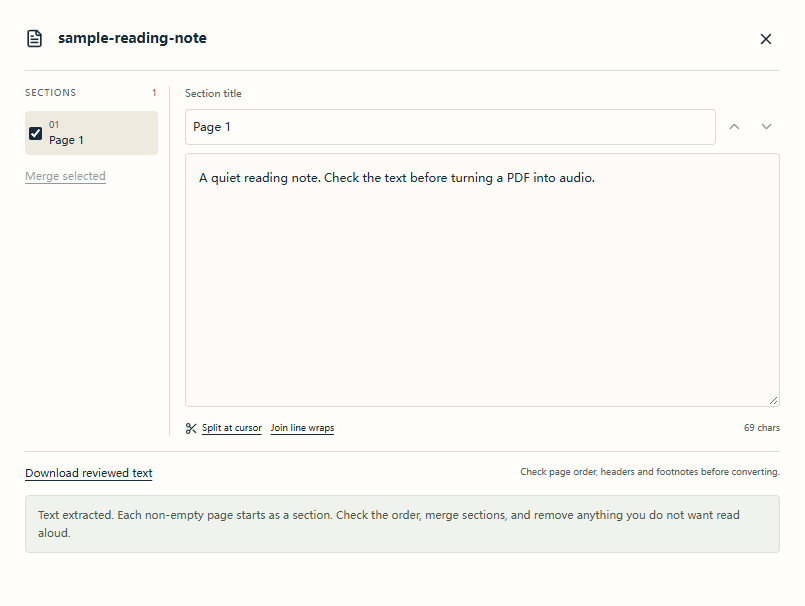
Text review after OCR: open the searchable PDF in the converter and compare the extracted words with the scan. The screenshot uses a sample PDF that already has selectable text.
Then choose a short passage containing ordinary prose plus a difficult name, a paragraph transition and any note treatment you plan to use. Generate it with your chosen TTS tool and listen while following the corrected script. Check that the first and last words are present, the reading order makes sense, and punctuation produces usable pauses. Fix the script or voice settings before expanding to the remaining chapters. Use the audiobook preview checklist to review that sample.
For a documented local audio step, Piper's Python API loads a local voice and writes reviewed text to WAV. Follow the Python guide or choose a local converter if you want a ready-made interface.
The text workspace reads a PDF's existing text layer in the browser. Run OCR elsewhere first, then check the resulting selectable text in the workspace. No scan or audiobook was generated or tested for this guide.
Walk through one scanned chapter
- Copy your source file. Open the copy in Acrobat and use Scan & OCR → In this file. Set the language and the page range for the chapter. Save the searchable copy separately.
- In the searchable file, copy the first and last paragraph from the chapter. Compare them with the scan, then check a page with a caption, number or note. Reorder columns and replace any table that does not make sense when read row by row.
- Open the searchable PDF in the PDF converter, or paste the corrected script into the text tool linked below. Select only the checked chapter and review the estimate.
- When generation is available, confirm the checked text, generate and download the MP3. Listen at the points you checked in the scan. If the audio says a wrong number, correct the script first.
| Route | Use it for | Check before narration |
|---|---|---|
| Acrobat Scan & OCR | A chapter or page range you want to process in a desktop app | Copy text from a previously image-only page and check it against the scan. |
| OCRmyPDF with Tesseract | Local processing of longer or mixed PDFs | Check skipped pages and extract from the searchable PDF, not just the sidecar. |
| Manual transcription | A short passage OCR cannot read reliably | Compare names, numbers and paragraph order with the scan. |
Scanned PDF audiobook FAQ
Does a searchable PDF mean all pages were recognized?
No. On a mixed document, a successful search can find only the pages that already had text. Check at least one phrase on each important image-only page after OCR.
What if the scan is encrypted or password protected?
Use an authorized unlocked copy before running OCR or importing. If you cannot get one, ask the document owner for an accessible copy.
Will OCR explain pictures or fix a scrambled table?
OCR can recognize printed labels, but it does not tell the narrator how a chart works. Write a short description if the information is needed and check that multi-column prose reads in order.
Can I save the result to a phone?
After recognition and correction, generate chapter MP3s and save them to the device. Extract any chapter ZIP before opening it in a compatible local player. The searchable PDF remains a separate file.